MTD for Income Tax: Feeling Overwhelmed by Looming Deadline?
Beat the deadline in a few easy steps
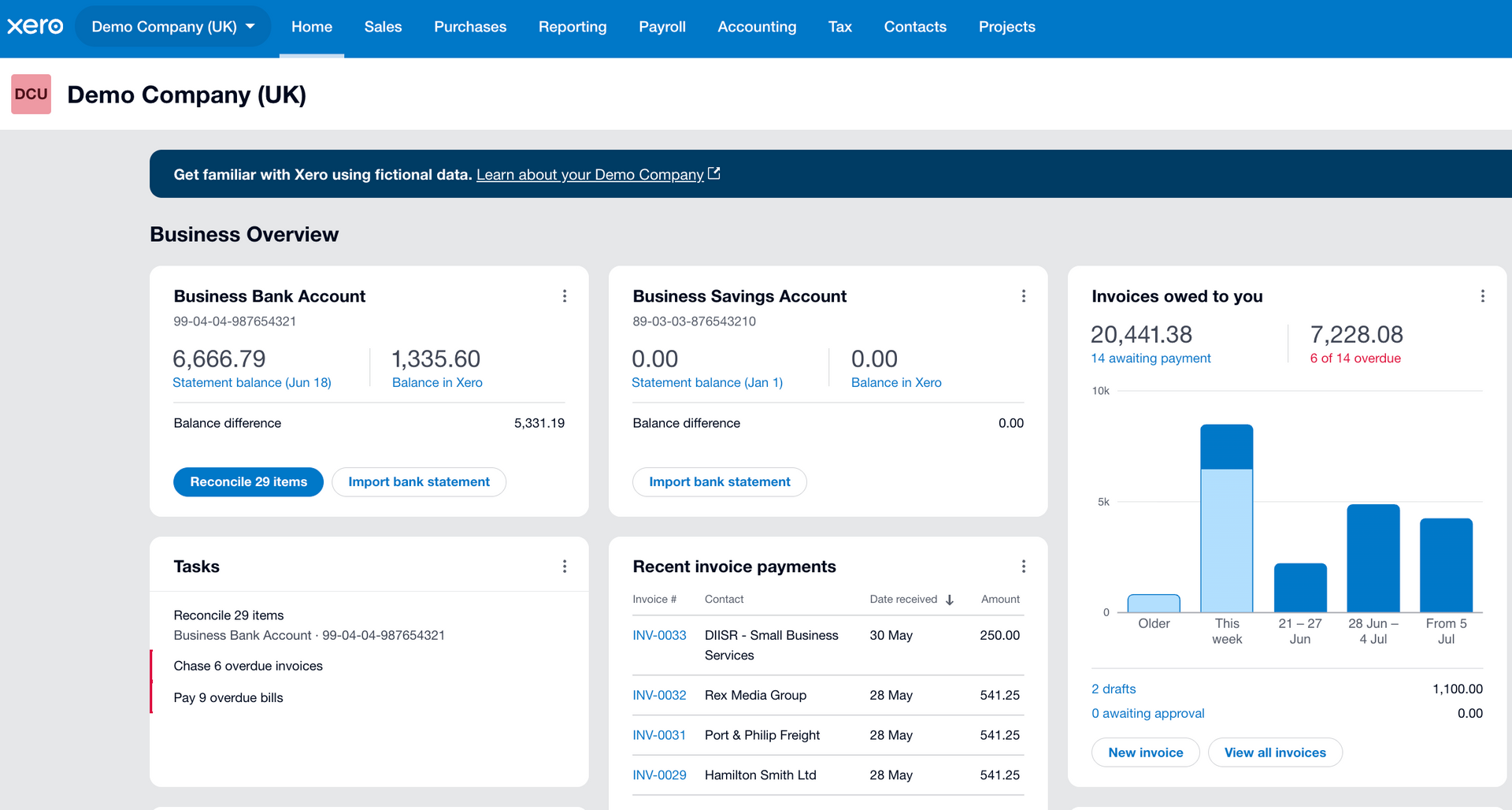
The deadline for your first Making Tax Digital (MTD) for Income Tax return is fast approaching – due by 5th August! If you’re feeling overwhelmed by these new rules, haven’t started, or are finding it all a bit of a headache, you’re not alone. The good news is, there’s a straightforward path to sorting this out, and I can help you with that.
Step 1: Get the Right Tool
The first step is to get your hands on the right software. Xero is a popular choice for MTD compliance and offers comprehensive guidance on their platform, read up on MTD for Income Tax and Xero including the subscription plan: https://www.xero.com/uk/programme/making-tax-digital/
Step 2: Ensure You’re Registered
Before you dive into the software, ensure you’re registered for MTD for Income Tax. You can find the official sign-up guidance here: https://www.gov.uk/guidance/sign-up-for-making-tax-digital-for-income-tax
Step 3: Set Up Your Xero Account
Once subscribed, setting up your Xero account is straightforward. After logging in, you can personalise your dashboard – Xero will prompt you. The key step is linking your business bank account (you’ll need your online banking login details for this). This is where Xero will pull in all your income and expenses automatically.
Step 4: Categorise Your Transactions
Once your bank transactions are loaded, you’ll need to categorise them. Xero provides clear codes for sales (customer payments) and expenses (payments to suppliers for things like materials, fuel, insurance, etc.). This ensures your tax return accurately reflects your business activity.
• Pro Tip: If you’re using a personal bank account for your business, Xero handles this but it’s crucial to code any personal transactions to ‘Owner Funds’ within Xero. This keeps your business income and expenses separate and ensures these personal payments are excluded from your tax return.
Step 5: Crucial Data Checks
Take a moment to review your bank transactions within Xero to ensure they’ve loaded correctly. If you see any transactions dated before 6th April, simply select and delete them. If any are missing, Xero has a straightforward process for importing them manually or via CSV. You can find detailed instructions within Xero’s help centre, or you can Google ‘Xero import missing bank transactions’ or I can assist you with this step.
Step 6: Prepare and Submit Your Return
Once your transactions are categorised and you’ve checked that it’s all correct, you’re on the right track to preparing your MTD return. You can access your return under the ‘Tax’ section in Xero. To submit, you’ll link your Xero account to your HMRC MTD account using your Self-Assessment login details. This process will guide you to your first submission.
Feeling Pressured? Get Expert Help to Ensure Compliance.
While I’ve outlined the steps to get started with MTD for Income Tax, I understand that for many, the pressure of new deadlines and unfamiliar software can be overwhelming. If you’re short on time, unsure about the technicalities, or simply want the peace of mind of knowing it’s done correctly, I offer a specialist MTD setup service.
For a one-off fee of £150 + VAT, I’ll personally set up your Xero account tailored to your business, ensuring accurate categorisation of your income and expenses, and I’ll handle the submission of your first MTD return.
Don’t let MTD stress you out. Get in touch today to reclaim your time and ensure this latest tax change doesn’t become a headache.